Start with Microsoft word
We start with Microsoft word using different options such as by clicking on desk top, click on new. Then, click on Microsoft Document. If you do not the first blog related to Microsoft word, I recommend you to read it first.
Windows search bar
- Click on the searching icon that found at the left side of the task bar of windows 10 O.S
- On the searching area, write Microsoft windows word. Then click on word app.

The word application will be opened as follows.

Task bar
if the word application is placed on task bar, we can double left click on the application.

Start with Microsoft word from desktop
- Right click on desk top
- Click on new
- Click on Microsoft word file
- Finally, you can get file writing and editing work space.
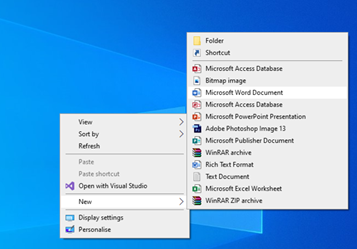
After you open the Microsoft word, you can write and edit your file.
Main title
Main title may be the chapter (units) of the book, project or research file. Before you start writing the file, you may modify the title header.
How to modify the header?
- Click on the home menu
- Go to the style tool bar and select the header you want. E.g. Header 1, header 2, header3, header 4 and soon.
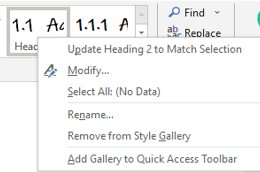
3. Click on modify. When you click on modify, you will get the following window that includes header level, and different font style and font sizes.
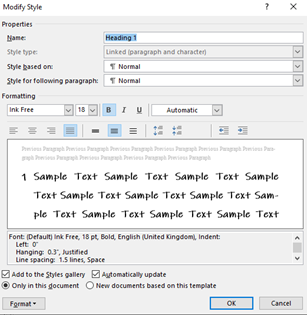
4. On this dialogue window, you can change font style, color, font size, vertical spacing and alignment of the header 1.
Follow the same procedure for header two, header three and another headers. Its step is the same as header one.
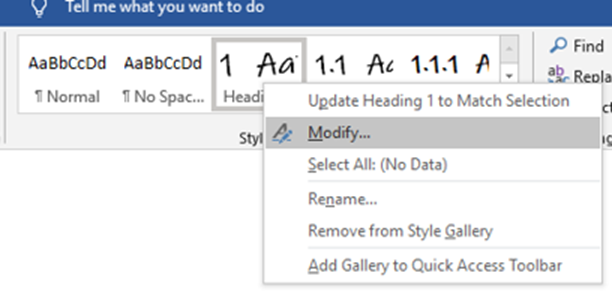
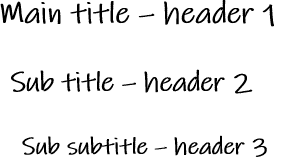
You can see the following examples related to titles and title headers in Microsoft word office. The first line indicates header one. The second line indicates header two. The third line indicates header three.