Reference and caption in Microsoft word document
Reference and caption in Microsoft word document are the most necessary components of our document. After writing our projects or researches, we should incorporate references and captions in our document. Unless the document we wrote is meaning less. Caption means the title of the tables or figures we give for it. Reference means the books, websites or research papers that we used to support our saying in the document. Before reading his post, please visit my seventh post. Additionally, I recommend you to read the following posts related to Microsoft word document writing.
- Microsoft word basics.
- Staring with Microsoft word.
- Formatting fonts in Microsoft word.
- Formatting paragraph in Microsoft word.
- Inserting contents in Microsoft word document.
- Designing A Microsoft word document.
- Page layouts in Microsoft word document.
To start practice with Microsoft word, you can get Microsoft Office from Get into PC.
Reference and caption (Insert figure caption)
You can insert figure title using insert caption tool.
Steps
- Take the mouse cursor under the figure.
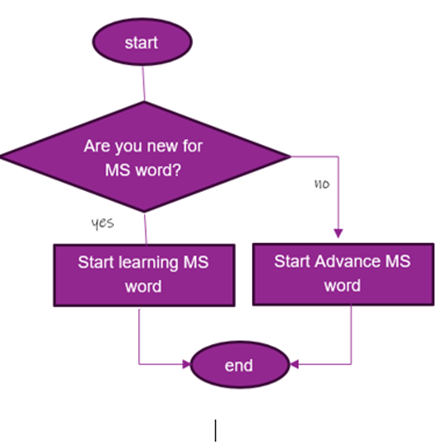
2. Click on reference menu.
3. Go to captions tool.
4. Click on insert caption. You will get the following option.

5. Select the label as figure. If you want to insert the caption for table, you will select the label table as follows.
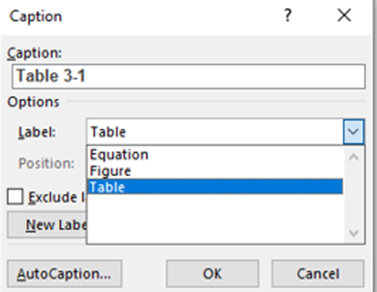
6. Give the title of the figure as follows and click on Ok.

7. Finally, the figure will have caption as follows.
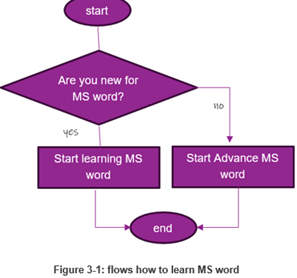
For table caption the procedure is the same as inserting figure caption. The difference is making the label table and the position your cursor should be at the top left of the table.
Insert table of the figures
This tool is used to insert the list of figures as table of content. This list of figures talks about the figures of the document. List of figure helps to quickly access where a given figure is found in the file.
Steps
- Click on reference.
- Go to captions tool.
- Click on insert tables of figure. You will get the following option window.
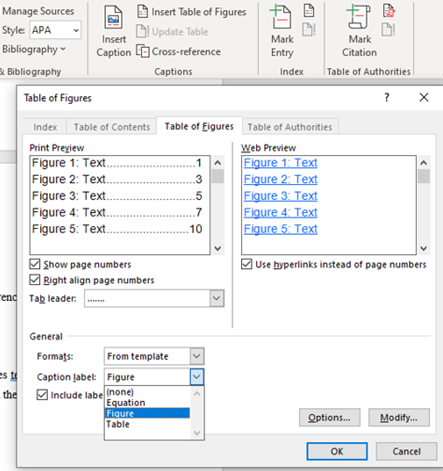
3. Select the caption label figure as shown above and click Ok. You will get the list of figures as follows.

Insert list of tables
This tool is used to insert the list of tables as table of content. This list of tables talks about the tables of the document. List of tables helps to quickly access where a given table is found in the document.
Steps
- Click on reference.
- Go to captions tool.
Click on insert tables of figure. You will get the following option window. Make sure that caption label is to be table

Example

Citation used to give credit for source of information by citing the book, articles, or other materials it comes from. You may add supportive information for your document (Idea) from books, journal articles, websites and any more source of information. You may install extra plugins for citation and reference such as Mendeley, Endnote and other useful software.
Remember that, before you make citation, you should add references. At the end of your document before appendixes.
Example
Reference and caption in Microsoft word (Insert Citation)
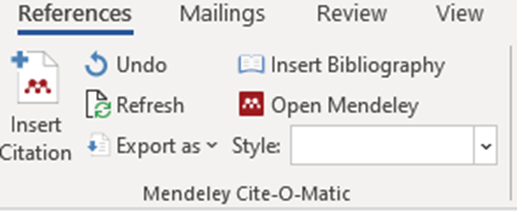
The following figure shows the word has Mendeley plugin. You can click on open Mendeley, if you have the plugin in your word. This makes you to make reference and citation.
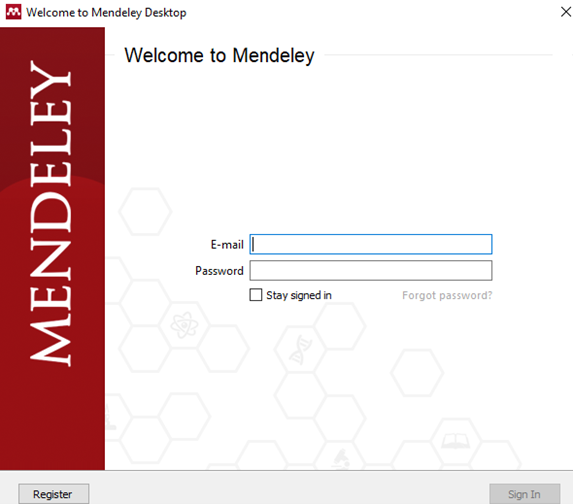
The following figure shows the user interface of Mendeley. You can use this software, if your computer has internet connection. Before start using Mendeley, you should register online. Then login using your e-mail (username) and password.
If you have not any reference and citation plugin, you can use the built-in tool using the following steps.
Steps
- Click on the reference menu.
- Go to citation and bibliography.
- Click on manage source button. You will get the following option window.
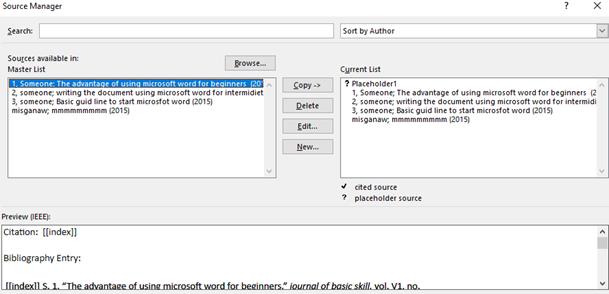
4. Click on new. You will get the following option window.

5. The following figure shows how you can edit the previously added sources (reference). This comes when you select the add source and click on edit button from the manage source option.

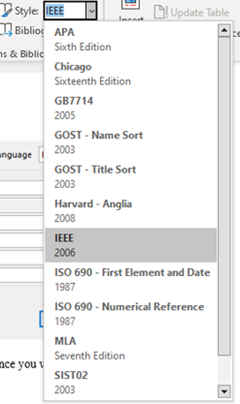
6. After adding all available reference, you can select the style of reference you want to use in your file as follows.
7. After adding all references, go to the place where you want to cite the reference.
8. Click on the insert citation button found in citation and bibliography tool.
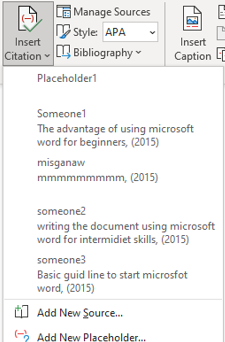
9. Select the source you want to cite at the current place of cursor.
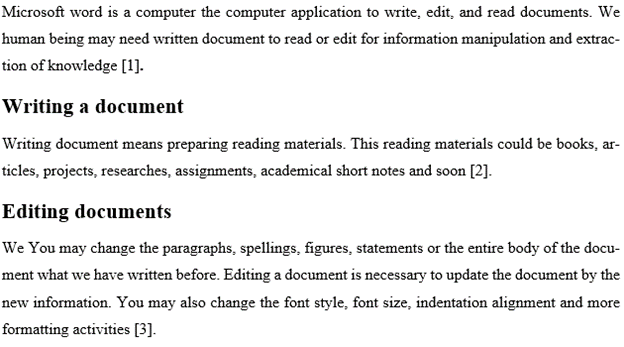
Example1: Citation in IEEE style
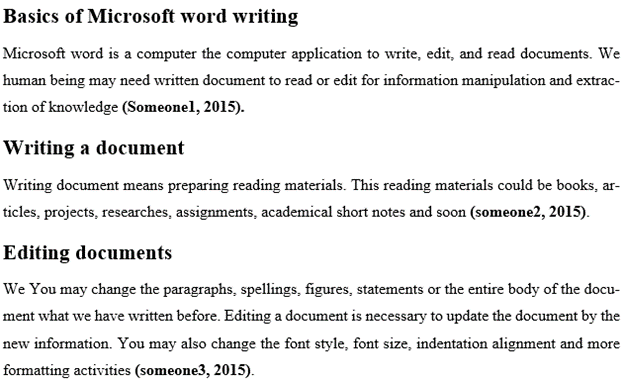
Example1: Citation in APA style
Reference and caption in Microsoft word (Insert Bibliography)
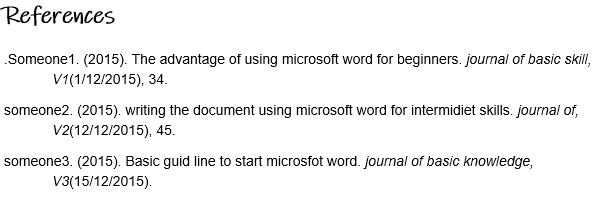
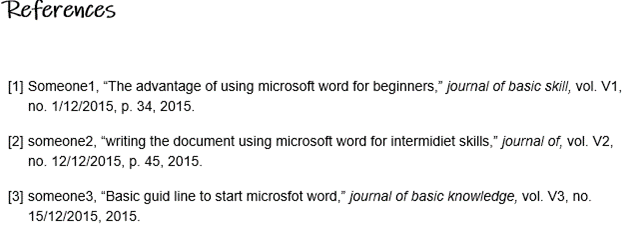
In the above section you have seen about how to add references (source of information) and citation. Know you can see how to add bibliography in detail. Bibliography is a list of references (source of information) written under references title. The bibliography always put at the end of the document.
Steps
- Go to at the end page of the file. Before appendixes.
- Click on references menu.
- Go to references and bibliography tool.
- Click on Bibliography button.
Example1: Reference in APA style
Example1: Reference in IEEE style
Insert Table of contents
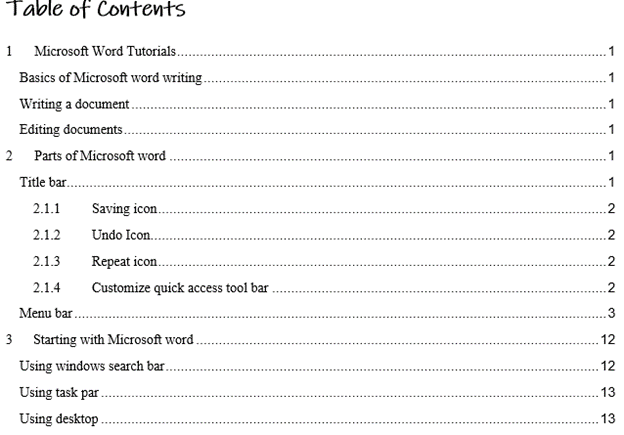
Table of content tool used to make an over view of the document. This tool enables you to show what title (content) is incorporated in your document. To incorporate the Main titles, sub title and sub subtitle in your table of contents, you should create the titles in heading.
Steps
- Place the mouse cursor on the starting page where you want to add the table of contents.
- Click on reference menu.
- Go to the table of contents tool.
- Click on the table of contents button. You will get the following option window.

5. Select automatic table and you will get the following result.
Thank you for reading.!!! To know more about our services, please visit our website here.


