Page layouts in Microsoft word document

Page layout is the structural design of Microsoft word document. Page layout in Microsoft word document includes, page margin, page orientation, paper size, page columns, page break and more layouts. Before reading his post, please visit my sixth post. Additionally, I recommend you to read the following posts related to Microsoft word document writing.
- Microsoft word basics.
- Staring with Microsoft word.
- Formatting fonts in Microsoft word.
- Formatting paragraph in Microsoft word.
- Inserting contents in Microsoft word document.
- Designing A Microsoft word document.
To start practice with Microsoft word, you can get Microsoft Office from Get into PC.
Page layouts in Microsoft word (Page Margin)
Using page margin, you can decide the margin of your document. You can select the built in margin or use your own custom margin.
Steps
- Click on the layout menu.
- Go to page setup tool.
- Click on the down arrow of margins button. By default, the page margin is settled Normal. As shown in the following snapshoot, you can customize your own margin by pressing custom margin.

4. If you select custom margin, the following option will appear.
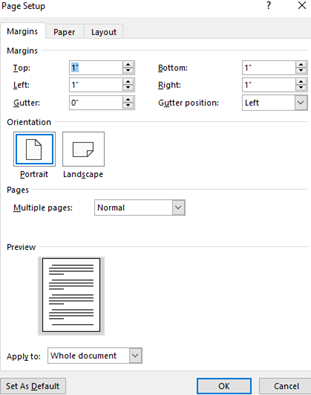
Examples of Margin
1: Normal Margin

2: Narrow margin

3: Wide margin

Example 3: Custom margin. Top 3 inch, left and 0.5 inch

Page layouts in Microsoft word (Orientation)
This tool helps you to make page layout. Layout in a sense the page may be vertically or horizontally oriented.
Steps
- Click on layout menu.
- Go to page setup tool.
- Click on the down arrow of orientation.
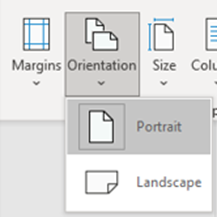
Example 1 portrait orientation
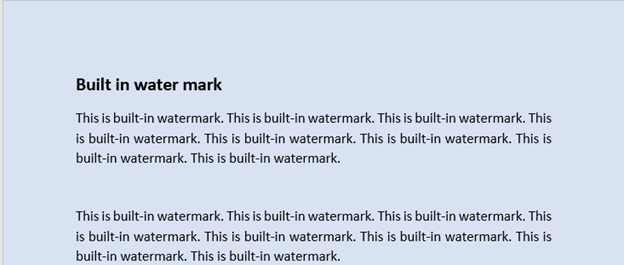
Example 2 Landscape orientation
Paper size
Size tool makes you to choose the paper size of your document.
Steps
- Click on layout menu.
- Go to page setup tool
- Click on the down arrow of the size button. You will get the following option. You can select the size.
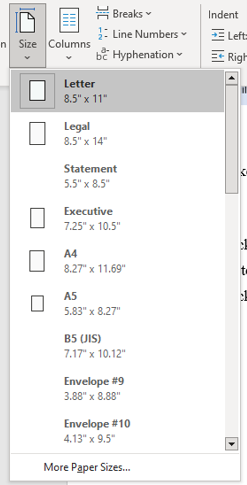
Example 1: A4 size
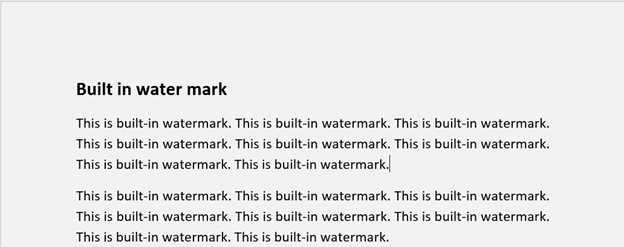
Example 2: A5 size

Page columns
You can split your text into two or more columns in a page or the whole body of the document.
Steps
- Click on layout menu.
- Go to page setup tool.
- Click on the down arrow of columns button. You will get the following options. Then you can select how many columns you will have in a page.
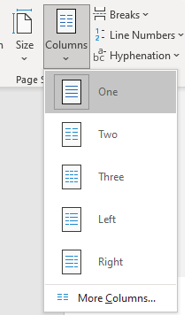
Example 1: one column

Example 2: two columns

Page break (sectioning)
If your document needs multiple page number format, you can use page breaks. This break makes you to start new page for each type of pages. The common page formats are, La-teen (1,2,3….), roman number (I, II, III, …) and alphabetic (A, B, C….).
- You may not need add any header, footer and page number in your cover page
- You may make the preliminary pages has page number of roman (I, II, II, …). The common preliminary pages are, such as abstract, acknowledgment, table of contents, list of figures, list of tables and acronyms (abbreviation word list)
- And your document body starting from introduction may be lateen number (1,2,3, …)
When you face into this challenge, you should use page break.
Steps
- Go to at the end of the page you want to create section break.
- Click on layout menu.
- Go to page setup tool.
- Click on the down arrow of the breaks. You will get the following options. Then you can go to the section break and select next page.

Format of page numbers
You know, there is three types of section for three format of page numbers.
- For the page format roman number, go to at the end of cover page and follow the above step. Here you make two section breaks. The 1st is the cover page and the 2nd is the roman number page.
- For the page format la-teen, go to at the end of the roman page format and apply the above four steps. Then you get three sections.
- For each page format, go to insert menu, click on the page number of header and footer tool to change the page format.
- For the roman number section, click the cursor at the starting page of roman number format, go to page format and change the page format to I, II, III, … as follows

- For la-teen number format the procedure is the same as the roman number page. You only change the number format to 1,2,3, …
Example
The 1st section. The cover page without any page number and footer.

The 2nd section (page break) with page format roman number.
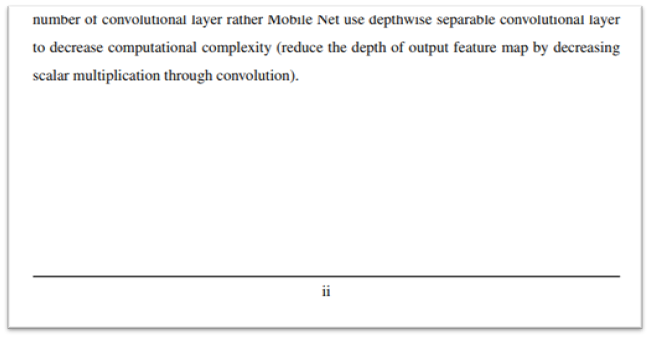
The 3rd section (page break) with page format la-teen number.
Thank you for reading.!!! To know more about our services visit our website.


