Microsoft word Basics

Basics of Microsoft word document writing.
This document is prepared for beginners of Microsoft word application. The document is prepared by word 2021. Hence, this guide may not match for the word below 2013 version. So, make sure that when you read and practice this guide, your Microsoft office version should be above MS office 2013.
In this document there will be unstructured, meaning less or disordered texts, sentences, Titles, paragraphs, shapes, figures or other contents. Do not worry about it; it is incorporated only for illustration what is talking about a specific section of concepts. Or the content is used as the example what you will do in each step.
Writing file means preparing reading materials. This reading materials could be books, articles, projects, researches, assignments, academical short notes and soon.
Writing a Microsoft word document
Editing documents
You may change the paragraphs, spellings, figures, statements or the entire body of the file what you have written before. Editing is necessary to update the document by the new version. You may also change the font style, font size, indentation alignment and more formatting activities.
Components of office word
Microsoft word has the following main parts.
Title bar
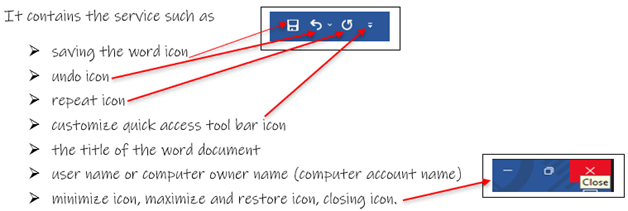
Saving Icon
It used to save the document. After you write or edit, you can save the document by pressing the save icon. If you save the document for the first time, the following window will pop out. This saving option has two functions. The 1st is “file name” to give the name of the file. The 2nd is “choose location” to choose where you are going to save the file.

Undo Icon: Used to replay the erased or edited, word, sentences, pictures and different shapes in the file.
Repeat Icon: By pressing this icon, you can repeat the word or the sentences you write.
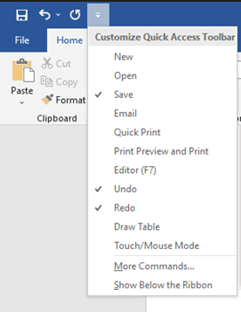
Customize quick access tool bar
It has an optional function like” file menu”. Pressing this ribbon enables you to create new file, open the saved file, save the file and other functions as shown in the figure.
Menu bar
The menu bar has different tool bar in side it. The menu bar contains the following menu:
- File
- home
- insert
- design
- layout
- references
- mailing
- review
- view
- help and
- if you have installed Grammarly
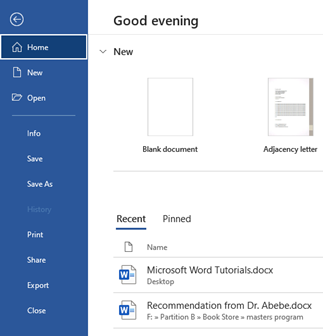
File menu
While clicking on the file menu, you can get the following option windows. This menu is used to create new file, save files, print the file, export the word file to PDF and more functionalities.
Home menu
The home menu has the following tool bar sections.
- Clipboard
- Font
- Paragraph and
- Style

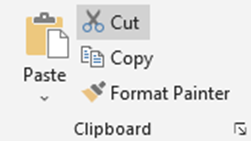
Clip board section
This tool is used to format the selected body of the file. This section also used to copy, cut, and past the content of the file.
Font
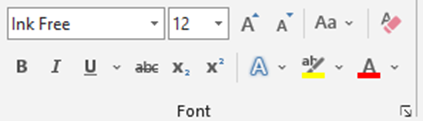
Using font section of the tool bar, you can perform the following functions,
- Change the thickness of the sentences and words
- Change the color of the sentences and words
- Change the font style (writing style) of the sentences and words
- You can insert word art and change the background color of the text
- You can make the word capitalize or small letter and more activities.
- you can increase or decrease font size
Paragraph
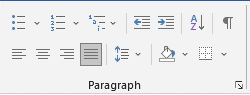
Using paragraph section, you can do the following activities.
- Giving bullet and numbers for item lists
- Giving heading numbers for main title, subtitle and sub subtitle
- Increase and decrease indent from left margin
- Making ascending and descending order for listed acronyms or abbreviations.
- Aline the text and figures left, center and right margin
- Give vertical line spacing between sentences and paragraphs
- Give background color for the paragraph, single sentence, tables and soon.
If you have tables in your document, you can give border dynamically either to the left, to the right, bottom, top or all sides of the table.
Style tool
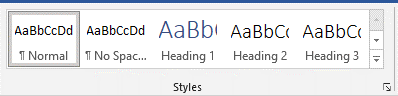
Using style tool, you can perform the following activities.
- Give title style such as heading 1, heading 2, heading 3 and extra.
- You can format your paragraph
- You can give different styles for your title, subtitle and paragraphs
Insert menu
Insert has the following tool bar
- Pages
- Table
- Illustrations
- Add ins
- Links
- comments
- header & footer
- text and
- symbols

Pages
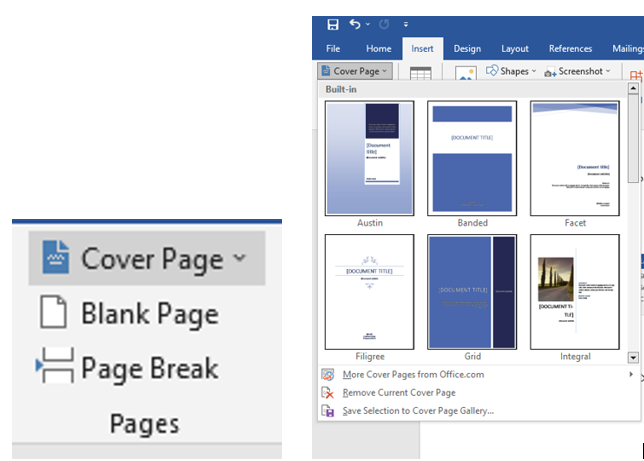
Using this page tool, you can insert cover pages, blank pages and page breaker in your document.
Tables tool
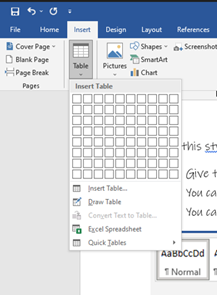
You can insert tables in your document by pressing insert menu and selecting tables tool as follows.
Illustrations
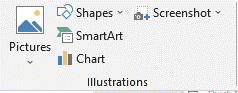
You can use illustration tool to insert charts, figures, different shapes, smart arts.
Add-ins
You can use add in tool to add Wikipedia and different add in.

Links
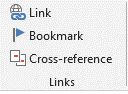
Link tool bar is used to insert hyperlinks and book marks or cross reference. This hyperlinks or cross reference redirect you to the reference you used and the web page you referenced from it.
Header and footer
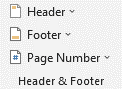
This tool bar is used to insert different stylish header and footer.
Text
This tool enables you to insert text box, word art, Microsoft signature data time and object source or files from your computer file.
Symbols
Symbol tool is used to insert different mathematical questions. Symbol tool is also used to insert different symbols that you cannot get easily on the keyboard.
Design menu
This menu bar contains the following tools.
- Document formatting and
- Page background

Document formatting
Document formatting
You can select the structure of entire document or single page. This tool also used to make paragraph spacing, select title color, select font style.

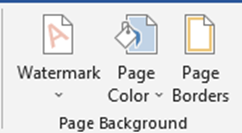
Page background
This tool enables you to select page color, page watermark and page borders.
Layout menu
This menu contains tools such as page style, paragraph, and arrange. Using the page setup tool you can make custom margin, orientation, size and column, page break and another useful activity. Layout menu also has paragraph tool to decide the right and left indent of the document.

Reference menu
This menu has the following tools.
- Table of contents.
- Foot notes.
- Citation and bibliography.
- Caption and more useful tools as shown in the following figures.

Table of content
It is clear that, table of content is used to give contents for the document using this tool.
Citation and Bibliography
You can insert citation if your document is research or project or books. Hence, this citation tool help you insert the citation for the reference you used in your document.
Captions
This captions tool enables you to insert title of tables and figures in your file. This tool also helps you to insert content of table for tables and table of figures.
So far, you get a clue about some of the menu and tools of the Microsoft word. In the remaining section, you will learn with precise and clear examples.


