Start with Microsoft excel

Start with Microsoft excel using different options such as by clicking on desk top, click on new. Then, click on Microsoft Document. If you do not read the first blog related to Microsoft excel, I recommend you to read it first. You can get the Microsoft excel application from its official site.
Start with Microsoft excel/Opening new MS excel
You can start MS excel from different place of your computer.
- By searching on the searching bar from the left bottom part of the windows.
- From the desktop.
- From the task bars.
Start Microsoft excel from search bar
Steps
- Click on the searching icon on the left bottom place of your computer
- Write Microsoft excel. You will get the following result

3. Double left clicks on the excel icon. Then the excel application will open.

Start Microsoft excel from desk top
Steps
- Right click on your desktop.
- Go to new.
- Click on Microsoft excel worksheet. Then the worksheet will open.

Start Microsoft excel from task bar
Steps
- Check you pin the application in your task bar.
- If the excel is pined on task bar, you can see it.
- Left double click on the excel application icon found on the task bar.

4. Finally, the application will open.
Saving Microsoft excel document
After completing your excel work, you should save the document. Follow the following steps.
- Press CTRL + S from the keyboard or click on file menu.
- Click save as if you are saving the document for the first time or save button if you already have the document. Save used to save the modified document. That means the document is present before the current time but you open it to edit some content in the document. To save the edited content you click on Save button. Save As is used to save the new document that is not created before the current time.
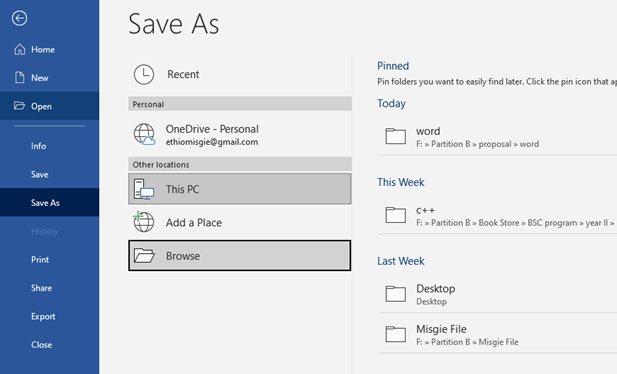
3. When you click on Save As button, the above option window will appear. Using this window, you can select the directory where your document will be stored or click browse button to get your own directory.
4. For example, you may want to save the document on desktop and you select Desktop. You can give you file name inside the file name field.

5. After selecting the file saving directory, click on save button to complete the saving task.
Open existing Microsoft excel document
Opening the existing file will require the following simple steps
Steps
- Go to the directory (folder) where your file is saved,
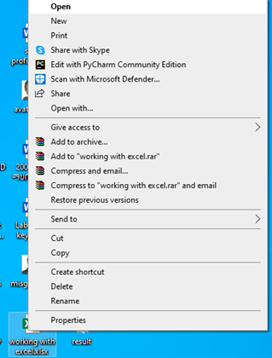
- Left double click on the file or right click on the file then left click on open button.
Export Microsoft excel document to PDF
Steps
- Click on file menu.
- Click on export button.

3. click on the create PDF button

4. Select the folder where the exported file will be stored, give the file name in side file name input field and click on publish.
Print Microsoft excel document
Steps
- Press CTRL + P from the keyboard or click on file menu.
- Click on print.

3. Select the connected printer from printer list.
4. Click on print button.
Remember, after click on the file menu, back to the excel worksheet use the following two option.
- Press escape key or
- Click on the backward arrow inside the circular shape at the top left of the file menu window.