Power point Slide design and Animation

Power point slide design and animation incorporates select the slide design type, select transition type select animation type and slide show timing . You can do this bay using a special power point tool called slide design, transition and animation tools. If you do not read my fifth post .I recommend you to read the following post relented to Microsoft power point.
- Basics of Microsoft power point presenter.
- Start with Microsoft power point.
- Formatting fonts in MS power point presenter.
- Inserting content in power point document.
- Custom power point shapes and equations.
You can download Microsoft Office from from this site.
Power point Slide design
Slide design helps you to select the theme, background color of slides. Slide design also used to determine the size of the slide.
Steps
- Click on design menu.
- Select the theme from themes tool.

3. You may select the design like the following snap shoot.

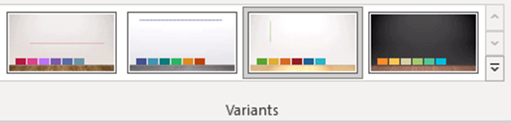
4. After selecting the them, you can change the variant of the them as follows.

Transition
Transition used to make transition effect when you switched from one slide to another.
Steps
- Click on transition menu.
- Go to transition to the slide.
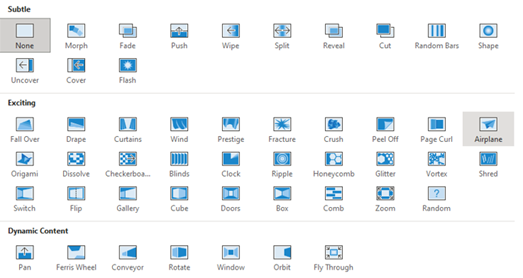
3. Select the transition type. When creating the transition, you can decide the time duration that determines how long second the transition effect will be animate or sound effects.
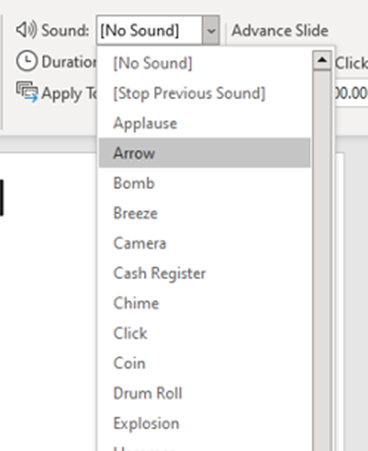
4. Go to timing tool and set the time or select the sound effect.
Slide Animation
Animation enables you to create different movement effects on individual contents of a slide or a block of contents, shapes, pictures of a slide.
Steps
- Select the content of a slide on which the animation will be applied.
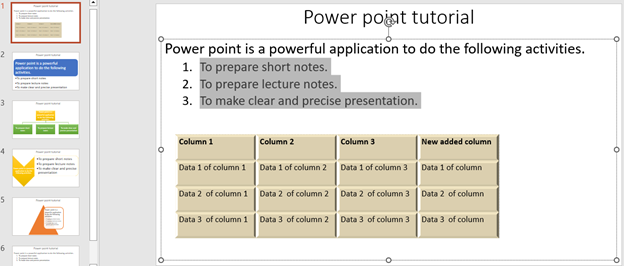
2. Click on animation menu.
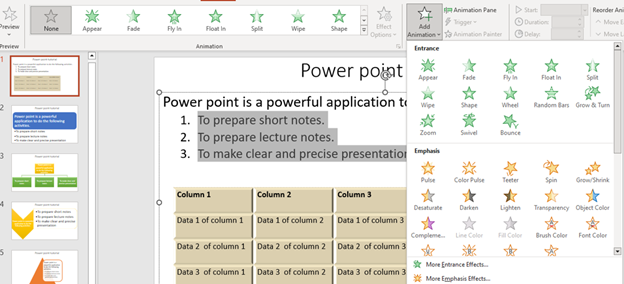
3. Click on the down scroll Key of animation option or click on Add animation ribbon.
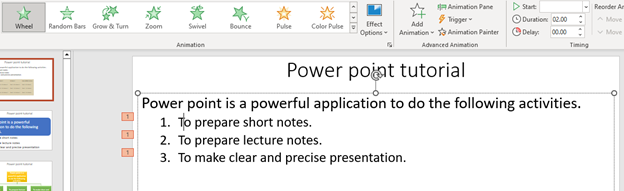
The following power point slide has wheel animation for the selected contents.
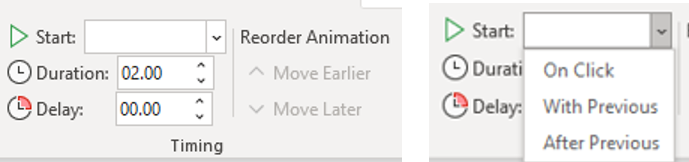
4. When you create animation, the timing option will be active. So, you can decide when the animation is start, how long second it takes and more option.
Slide show
Slide show menu has many tools to play with slide show activities. You can decide the starting place of slide show, hide, rehearse timing, record slide show and many more activities.

Start slide show
You can start slide show from the beginning slide, from the current slide or you can give custom slide show.
Steps
- Click on slide show.
- Go to start slide show tool
- Select from where the slide show will be start.
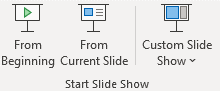
4. Or you can make the custom slide show.
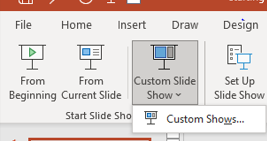
5. Click on the down arrow of Custom slide show ribbon and click on the custom setting button. The following option window will appear.
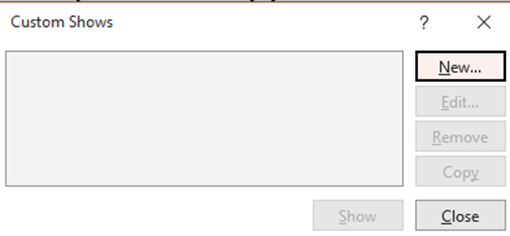
6. Click on new.
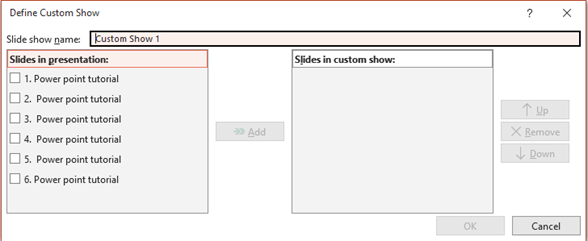
7 Select the slide to be incorporated in the slide show by checking the check box of each slide. Here, you can omit the slide that is not necessary to display on slide show.
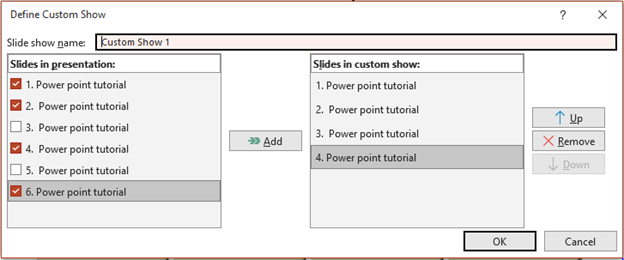
8. After selecting the slides, click on add to get the above result. Finally give the name of custom show and press Ok button.
Setup slide show
When you click on Setup slide show ribbon, you will get three main activities in the following snapshot such as show type, show slide and how option.
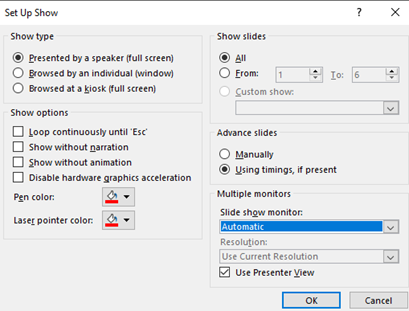
Using show type, you able to who controls the slide show. Using show slides, you can decide on what slide will be presented in slide show. That means you can include all slide or some range of slides on slide show. Using show options, you can make the slide loop continuously until the ESC key is pressed from the keyboard.
Hide slide
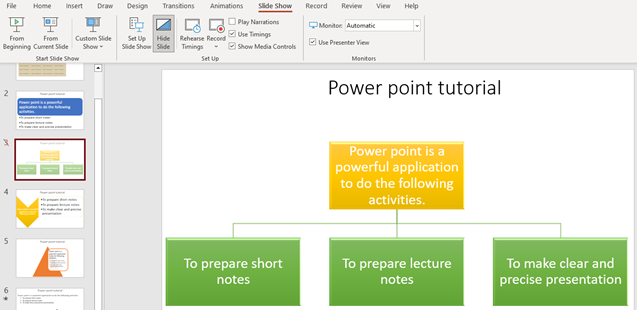
Hid slide enables you to make the slides invisible while the power point is in slide show mode.
Steps
- Click on the slide to be hidden.
- Click on slide show menu.
- Go to setup tool.
- Click on Hide Slide. Then the selected slide will not display on the slide show.
Rehears timing
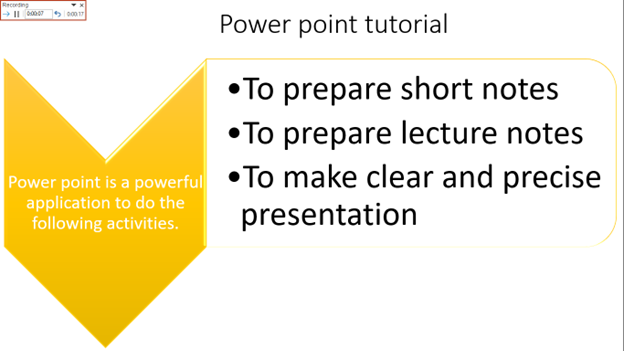
Rehears timing is used to set time duration for each slide during slide show and make the presentation automatic. That means the slide show will switch from one slide to the next while you are presenting the power point note.
Steps
- Make sure your presentation biggen from the form slide.
- Click on slide show menu.
- Go to setup tool.
- Click on Rehears Timing ribbon. The power point will start count time for each slide show as follows.
View slide
View menu has tools to view outline of the slide, to make the slide short view, to view the slide in the print view format, play your slide show and more activities.
Presentation view
Steps
- Click on view menu.
- Go to the presentation view tool.
- Select the type view.
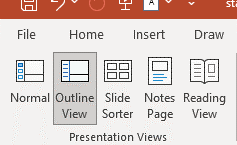
4. Click on normal view to view the slide in normal mode.

5. Click on outline view to view the slides with its content outline.

6. Click on slide shorter to see thumbnail of all slide to make rearrangement easy.
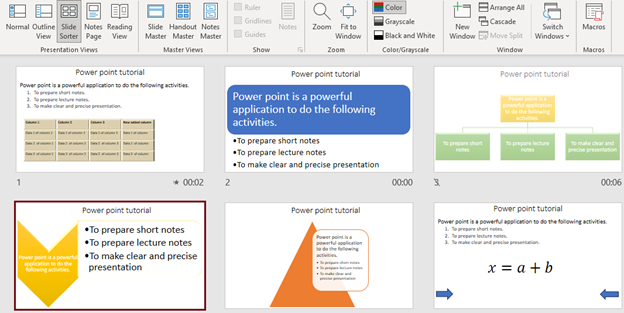
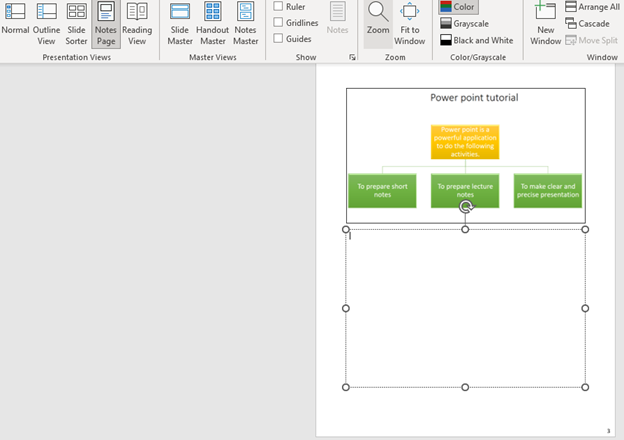
7. Click on notes page to change the slide into note page. This enables you to add illustrative notes for a given slide.