Custom power point shapes and equations
Custom power point shapes and equations incorporates inserting shapes and mathematical equations by writing on in the body of presentation. You can do this bay using a special power point tool called drawing tool. The too has differently sized markers. This tool also makes you to select different colors for a given marker. you can also delete the shape you already draw or the mathematical equations. With the help of this tool, you can draw your costume shape and write any mathematical equations to insert in your power point presenter document. If you do not read my fourth post .I recommend you to read the following post relented to Microsoft power point.
- Basics of Microsoft power point presenter.
- Start with Microsoft power point.
- Formatting fonts in MS power point presenter.
- Inserting content in power point document.
You can download Microsoft Office from from this site.
Custom power point shape (Draw shapes)
Steps
- Click on draw menu.
- Go to drawing tools.
- Select the type of pencil or marker.
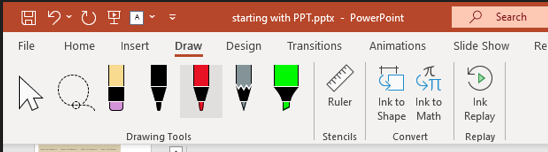
Here, you can select the color and thickness of the pencil or marker by clicking on the down arrow of the selected pencil as follows.

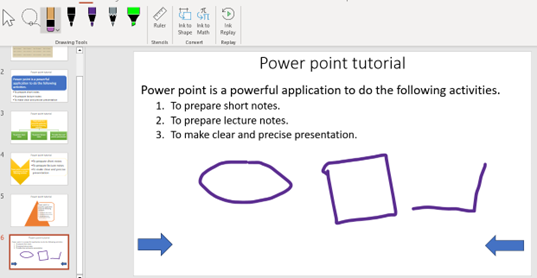
4. Now you already select the pencil, the color and thickness of the pencil. The next task will be drawing the shapes or pictures.
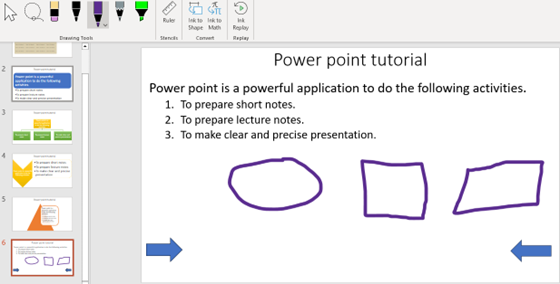
5. You can also make your drawing perfect by clicking on lnk to shape before you start draw.
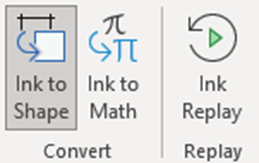
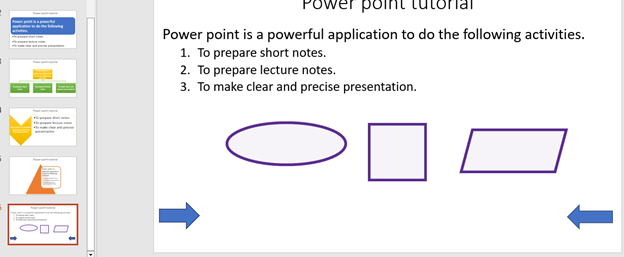
6. You may need delete the shapes after you draw it by selecting the pencil eraser.
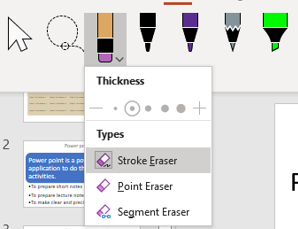
7. After selecting the pencil eraser, click on the lines of shapes to be deleted.
Costume mathematical equations
You can insert mathematical equation using drawing and convert tool.
Steps
- Click on draw menu.
- Select the pencil from drawing tool.
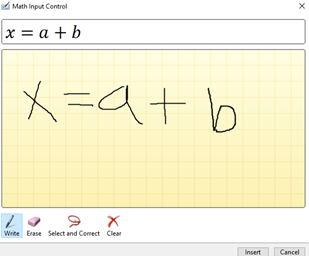
- Click on lnk to Math. You will get the following writing window.
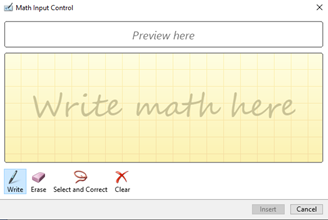
4. Write the equation and click on insert button.
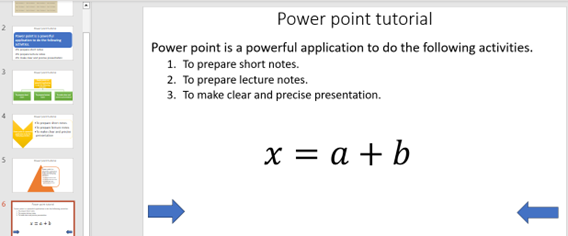
5. The result will look like the following snap shoot.
Thank you for reading.!!!. To know about our services visit this site.


